
If your robot vacuum is not working properly, the first step is to diagnose the specific issue. Common problems include the robot not charging, getting stuck, or failing to clean effectively. By following a few simple troubleshooting steps, you can often resolve the problem and get your robot vacuum back in working order.
⚙️ SmartVacFix™ Diagnostic Triage
Primary Symptom: Robot vacuum is not powering on or responding to commands.
Tools & Parts Required: Phillips #1 screwdriver, replacement battery (if needed)
Repair vs. Replace: This issue can often be resolved by cleaning the charging contacts and replacing the battery if it is no longer holding a charge.
Safety Warning: Power off the robot vacuum and disconnect it from the charging dock before attempting any repairs.
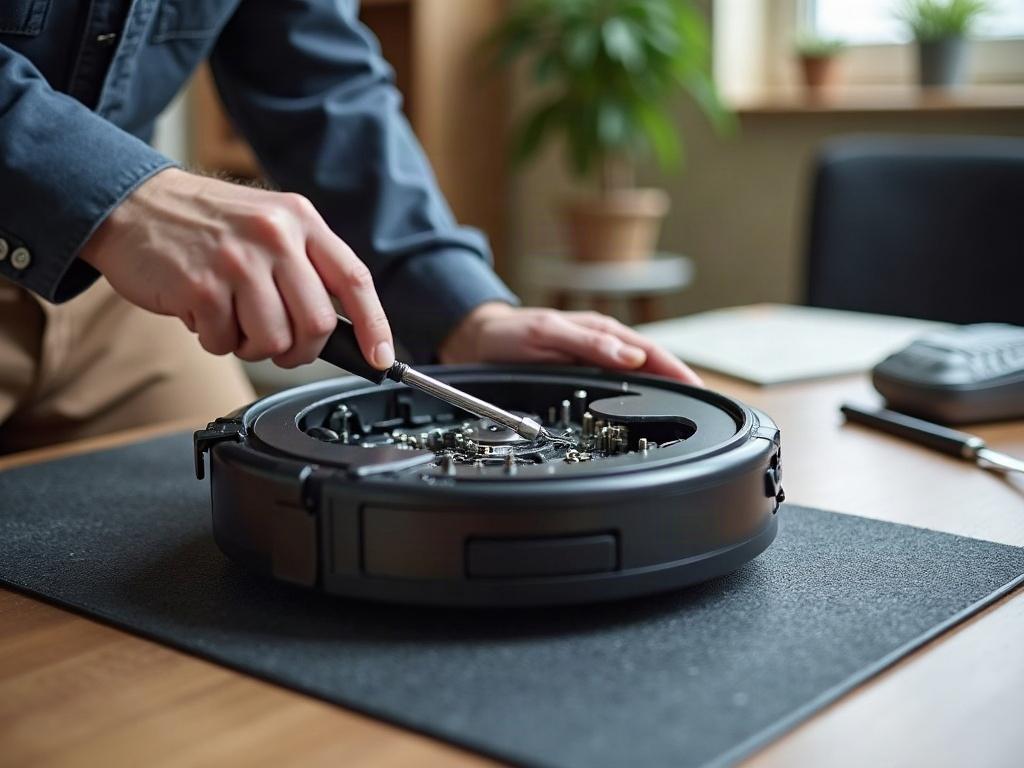
Why Isn’t My Robot Vacuum Powering On?
If your robot vacuum is not powering on at all, the first thing to check is the battery. Locate the battery compartment, usually on the underside of the unit, and inspect the battery contacts for any dirt or corrosion. Use a Phillips #1 screwdriver to remove the battery cover, then clean the contacts with a dry cloth or compressed air.
If the battery contacts are clean, the next step is to replace the battery. Refer to your manufacturer’s instructions for the proper battery model and replacement procedure. In some cases, a faulty battery may need to be replaced to restore full functionality.
What If My Robot Vacuum Is Stuck or Not Cleaning Properly?
Another common issue is the robot vacuum getting stuck or failing to clean effectively. This can be caused by a variety of factors, including:
- Tangled or obstructed wheels: Check the wheels for any hair, debris, or tangles that may be preventing them from turning freely.
- Dirty or blocked sensors: Use a spudger or soft cloth to gently clean the cliff, wall, and other sensors on the robot.
- Clogged brushes or filters: Remove and clean the brushes, rollers, and filters according to the manufacturer’s instructions.
If the robot vacuum is still getting stuck or not cleaning properly after these basic checks, it may be time to consult your manufacturer’s troubleshooting guide or contact their customer support for further assistance.
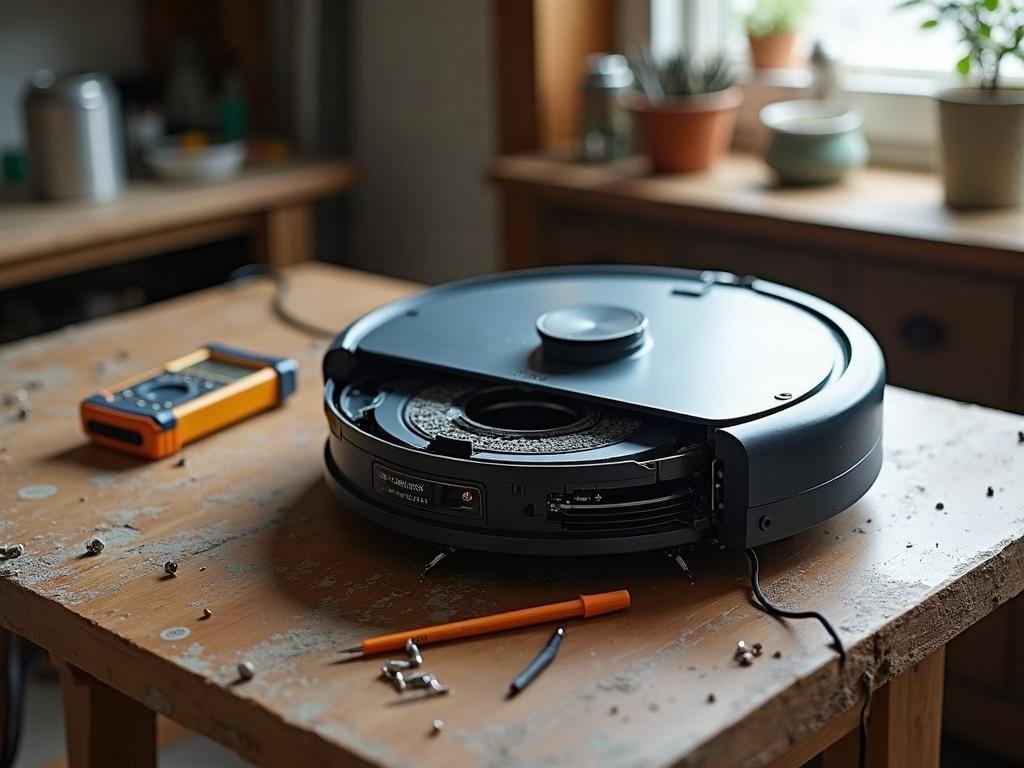
How Do I Reset My Robot Vacuum?
If your robot vacuum is experiencing more complex issues, such as error codes or unexpected behavior, you may need to reset the device. The reset process can vary by brand and model, but typically involves pressing and holding a specific button or combination of buttons for several seconds.
Consult your manufacturer’s instructions for the exact reset procedure. This will often clear any temporary glitches or errors and restore the robot vacuum to its default settings.
Maintaining Your Robot Vacuum
To help prevent future issues and keep your robot vacuum running smoothly, it’s important to perform regular maintenance. This includes:
- Emptying the dustbin after each use
- Cleaning the brushes, rollers, and filters according to the manufacturer’s recommendations
- Checking the cliff sensors and LiDAR turret (if applicable) for any obstructions or debris
- Ensuring the charging contacts on both the robot and the dock are clean and free of corrosion
By following these simple maintenance steps, you can help extend the life of your robot vacuum and avoid common troubleshooting issues.
Frequently Asked Questions
Why is my robot vacuum not charging?
If your robot vacuum is not charging, first check the charging contacts on both the robot and the charging dock for any dirt or debris. Clean the contacts with a dry cloth or compressed air. Also, ensure the dock is properly plugged in and receiving power. If the issue persists, the battery may need to be replaced.
How do I clean the sensors on my robot vacuum?
To clean the sensors on your robot vacuum, use a soft, dry cloth or a spudger tool to gently wipe away any dust or debris. Avoid using liquids, as this could damage the sensitive electronic components. Pay close attention to the cliff sensors, wall sensors, and any other navigation sensors on your specific model.
What should I do if my robot vacuum is stuck?
If your robot vacuum becomes stuck, first try to identify the cause. Check for any obstructions or tangles around the wheels, brushes, or other moving parts. Carefully remove any debris or hair that may be preventing the robot from moving freely. If it’s still stuck, you may need to manually reposition the robot or contact the manufacturer for further troubleshooting assistance.
How do I replace the battery in my robot vacuum?
Replacing the battery in your robot vacuum typically involves removing the bottom or side panel, disconnecting the old battery, and installing a new, compatible replacement battery. Consult your manufacturer’s instructions for the specific steps and battery model required for your robot vacuum. Be sure to power off the device and handle the battery with care.
Why is my robot vacuum not picking up dirt?
If your robot vacuum is not effectively picking up dirt and debris, there are a few things to check. First, ensure the dustbin is not full and that the filters are clean. Also, inspect the brushes and rollers for any tangles or obstructions that may be preventing them from picking up dirt. Finally, make sure the sensors are clean and unobstructed, as this can affect the robot’s navigation and cleaning performance.
How do I reset my robot vacuum?
The reset process for your robot vacuum may vary depending on the brand and model. Typically, you’ll need to locate a reset button or combination of buttons, then press and hold them for several seconds until the robot resets. Consult your manufacturer’s instructions for the specific reset procedure for your device.
What should I do if my robot vacuum is making strange noises?
If your robot vacuum is making unusual noises, such as grinding, squeaking, or rattling, it’s best to stop using it and investigate the cause. First, check for any obstructions or debris that may be interfering with the moving parts. If the noise persists, it could indicate a more serious issue, such as a problem with the motors or gears. In this case, you may need to contact the manufacturer for further troubleshooting or repair assistance.