
If your Roborock robot vacuum is experiencing LiDAR-related issues, such as navigation problems, poor mapping, or error codes, there are a few troubleshooting steps you can try before considering a repair or replacement. The first step is to diagnose the specific problem and determine if it’s a hardware or software-related issue.
⚙️ SmartVacFix™ Diagnostic Triage
Primary Symptom: Roborock LiDAR error code E901 or erratic navigation/mapping
Tools & Parts Required: Phillips #1 screwdriver, spudger, and potentially a Roborock LiDAR turret replacement
Repair vs. Replace: The LiDAR turret may be able to be cleaned and recalibrated, but a replacement part may be required if the sensor is damaged.
Safety Warning: Power off the Roborock and remove it from the charging dock before attempting any repairs or maintenance.
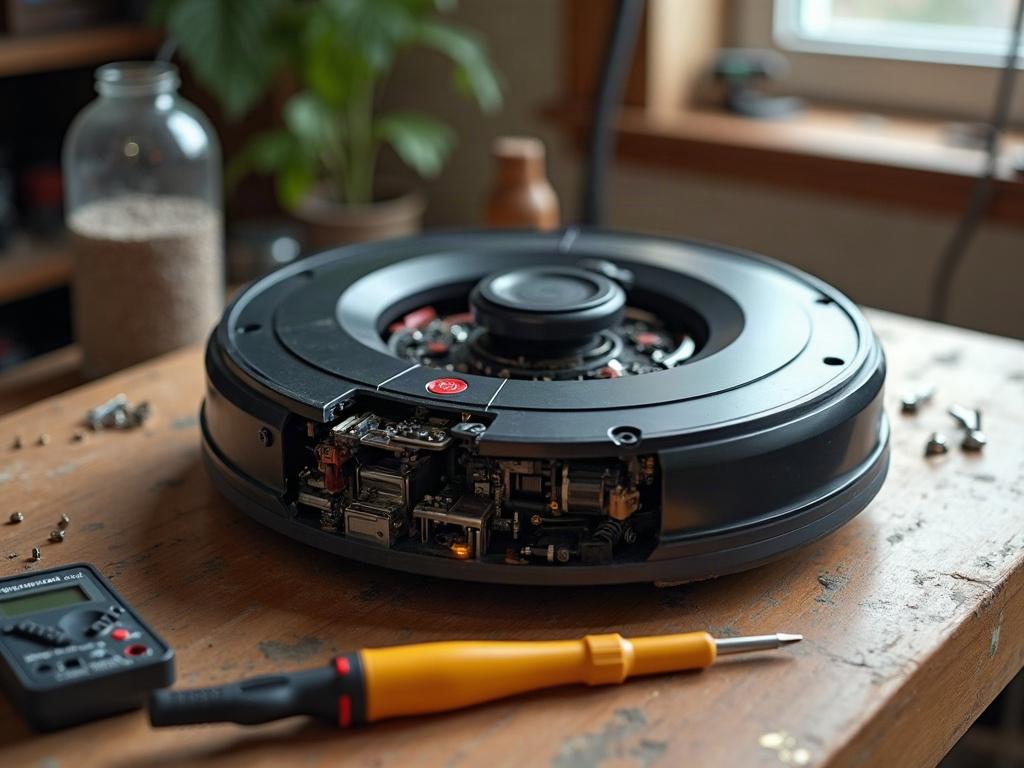
Troubleshooting Roborock LiDAR Issues
The first step is to check for any error codes or diagnostic information in the Roborock app or on the device itself. Common LiDAR-related error codes include E901, which can indicate a problem with the LiDAR sensor or its calibration. If you see an error code, make a note of it.
Next, visually inspect the LiDAR turret on top of the Roborock. Look for any physical damage, dust, or debris that could be interfering with the sensor. Use a spudger or soft cloth to gently clean the turret, being careful not to apply too much pressure.
Recalibrating the Roborock LiDAR
If the LiDAR turret appears clean, the next step is to try recalibrating the sensor. This can often resolve issues with mapping, navigation, or error codes. Refer to your Roborock user manual or the manufacturer’s website for specific instructions on how to initiate a LiDAR calibration process.
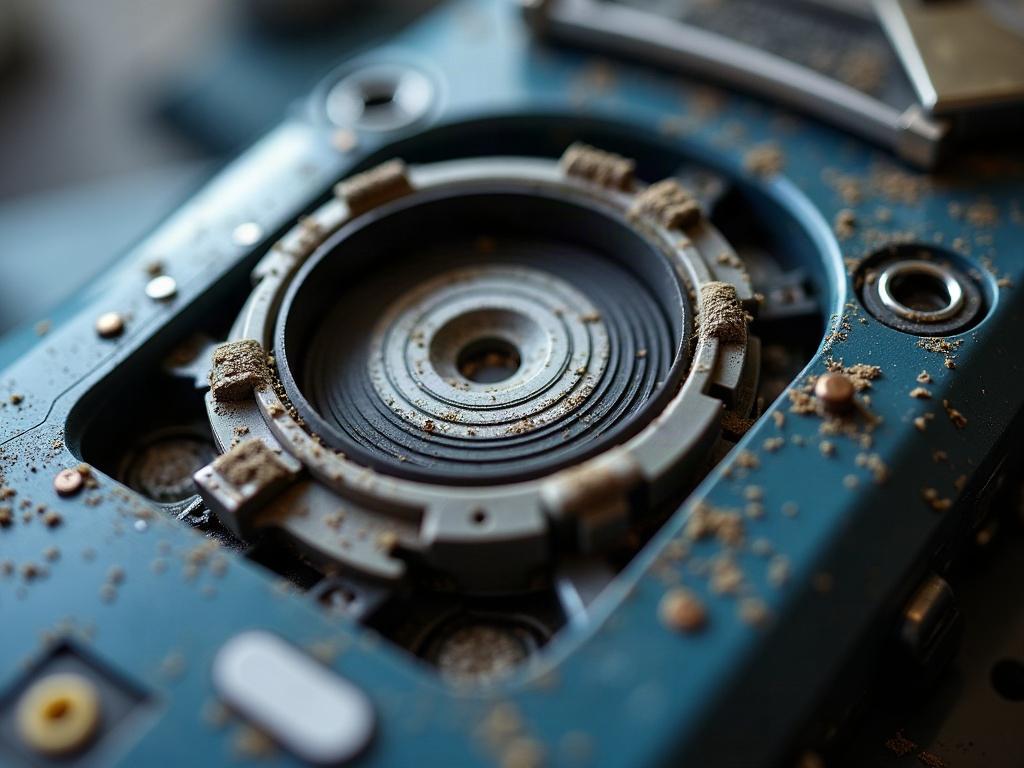
Replacing the Roborock LiDAR Turret
If the LiDAR issues persist after cleaning and recalibration, the LiDAR turret may need to be replaced. This is a more involved repair that requires partially disassembling the Roborock. Refer to your user manual or contact Roborock support for specific instructions on how to access and replace the LiDAR turret.
Differences Between Roborock Models
It’s important to note that the LiDAR system and repair process may vary slightly between different Roborock models. For example, some newer models may use a camera-based navigation system instead of LiDAR. Always refer to your specific model’s documentation or contact the manufacturer for the most accurate repair guidance.
Preventing Future Roborock LiDAR Issues
To help prevent future LiDAR problems, regularly clean the LiDAR turret and ensure the Roborock is operating on the latest firmware. Avoid using the robot in dusty or cluttered environments, as this can interfere with the LiDAR sensor. Additionally, be mindful of any physical impacts or drops that could potentially damage the LiDAR turret.
Frequently Asked Questions
What does the Roborock LiDAR do?
The LiDAR (Light Detection and Ranging) sensor in Roborock robot vacuums is responsible for mapping the home and navigating the robot during cleaning. It uses laser technology to create a detailed 3D map of the environment, allowing the Roborock to clean efficiently and avoid obstacles.
How do I reset the Roborock LiDAR?
To reset the Roborock LiDAR, refer to your user manual or the manufacturer’s website for specific instructions. This typically involves a combination of button presses or accessing the settings in the Roborock app. A LiDAR reset can help resolve mapping or navigation issues.
Why is my Roborock LiDAR not working?
Common reasons for a malfunctioning Roborock LiDAR include physical damage to the turret, dust or debris interfering with the sensor, firmware issues, or a problem with the LiDAR hardware itself. Follow the troubleshooting steps outlined in this guide to diagnose and potentially resolve the issue.
Can I replace the Roborock LiDAR myself?
In some cases, you may be able to replace the Roborock LiDAR turret yourself, but this is a more involved repair that requires partially disassembling the robot. Refer to your user manual or contact Roborock support for specific instructions on how to access and replace the LiDAR component.
How do I clean the Roborock LiDAR?
To clean the Roborock LiDAR turret, use a soft, dry cloth or a spudger to gently wipe away any dust or debris. Avoid using water or other liquids, as this could damage the sensitive sensor. Be very careful not to apply too much pressure or touch the internal components.
Why is my Roborock not mapping properly?
If your Roborock is having issues with mapping or navigation, it’s likely due to a problem with the LiDAR sensor. Follow the troubleshooting steps in this guide to diagnose and potentially resolve any LiDAR-related issues that could be causing mapping problems.
How do I update the Roborock LiDAR firmware?
Updating the Roborock firmware, including the LiDAR firmware, can help resolve various issues. Refer to your user manual or the Roborock website for instructions on how to check for and install the latest firmware updates for your specific model.