
If your robot vacuum is not picking up dirt and debris as effectively as it should, there are a few common troubleshooting steps you can take to diagnose and resolve the issue. The first step is to identify the primary symptom you’re experiencing, then gather the necessary tools and determine if the problem can be fixed or if a replacement part is required.
⚙️ SmartVacFix™ Diagnostic Triage
Primary Symptom: The robot vacuum is not picking up dirt, debris, or pet hair as effectively as it used to.
Tools & Parts Required: Phillips #1 screwdriver, soft-bristle brush, compressed air, and potentially an OEM replacement filter or brush roll.
Repair vs. Replace: In many cases, the issue can be resolved by cleaning the robot’s sensors, filters, and brush roll. If those components are worn out, a replacement part may be needed.
Safety Warning: Always power off the robot vacuum and remove it from the charging dock before performing any maintenance or repairs.
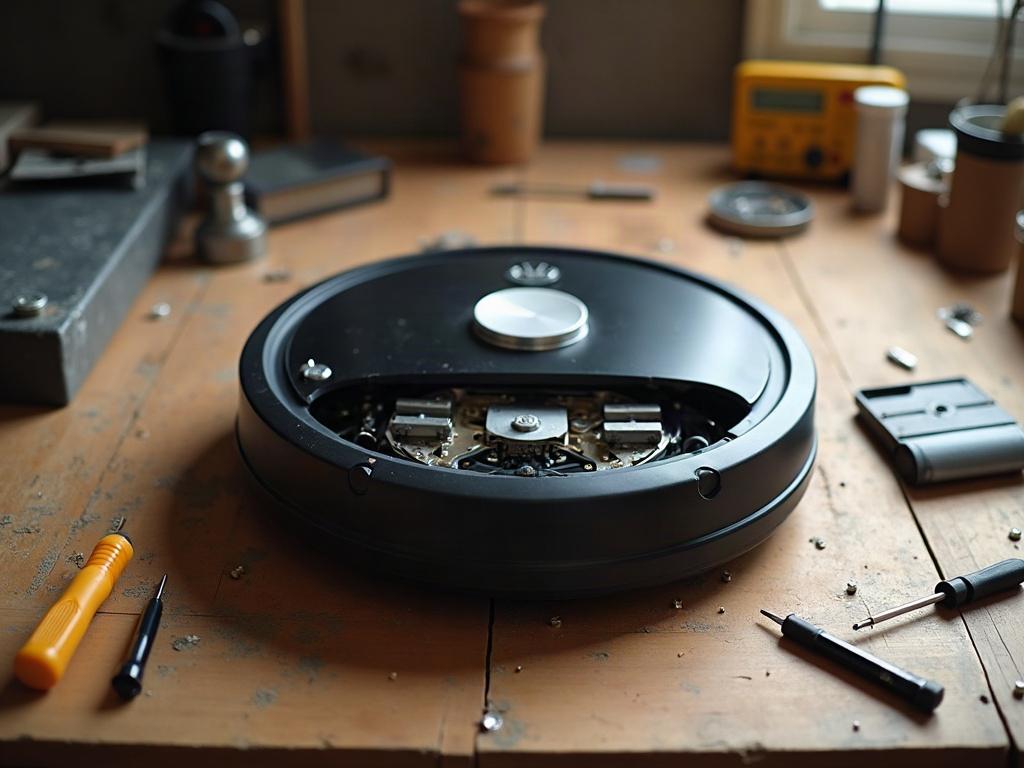
Why Is My Robot Vacuum Not Picking Up Dirt?
The most common reasons a robot vacuum may not be effectively picking up dirt and debris include:
- Clogged or dirty sensors: The robot’s cliff, wall, and dirt sensors can become obstructed by dust and debris, preventing it from navigating and cleaning properly.
- Worn or tangled brush roll: The main brush roll responsible for agitating and picking up dirt can become worn down or tangled with hair and fibers over time.
- Dirty or clogged filters: The robot’s filters, which trap dirt and dust, can become clogged and reduce suction power.
- Low battery: If the robot’s battery is running low, it may not have enough power to effectively clean the floor.
How to Clean a Robot Vacuum’s Sensors
To clean the robot vacuum’s sensors:
- Power off the robot and remove it from the charging dock.
- Use a soft-bristle brush or compressed air to gently clean the cliff, wall, and dirt sensors located on the underside of the robot.
- Avoid using any liquids or abrasive materials, as this could damage the sensitive sensors.
- Refer to your robot’s user manual for the specific location and cleaning instructions for the sensors on your model.
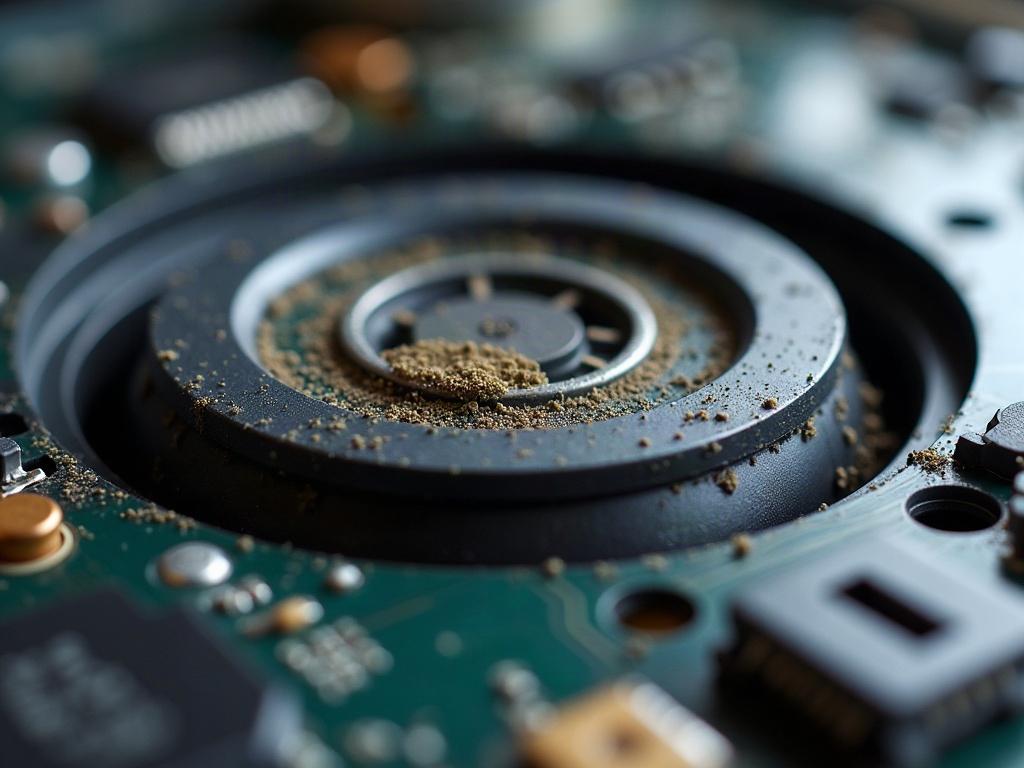
How to Clean the Brush Roll
To clean the robot vacuum’s brush roll:
- Power off the robot and remove it from the charging dock.
- Locate the brush roll cover or door on the underside of the robot and remove it.
- Carefully remove the brush roll and use scissors to cut away any tangled hair or fibers.
- Use a soft-bristle brush or compressed air to clean the brush roll and the brush roll housing.
- Reinstall the brush roll and cover, making sure it is properly aligned and secured.
How to Clean the Filters
To clean the robot vacuum’s filters:
- Power off the robot and remove it from the charging dock.
- Locate the filter compartment, usually on the top or side of the robot, and remove the filter(s).
- Tap the filter(s) gently against a hard surface to remove any loose dirt and debris.
- Use a soft-bristle brush or compressed air to further clean the filter(s).
- Reinstall the clean filter(s) and close the compartment.
Preventive Maintenance Tips
To help keep your robot vacuum performing at its best, consider the following preventive maintenance tips:
- Clean the sensors, brush roll, and filters regularly (at least once a month).
- Empty the dustbin after each cleaning cycle to prevent it from becoming overfilled.
- Check the battery level and charge the robot vacuum as needed to maintain optimal performance.
- Refer to the manufacturer’s recommendations for the recommended cleaning and maintenance schedule for your specific model.
Frequently Asked Questions
Why is my robot vacuum not picking up pet hair?
If your robot vacuum is struggling to pick up pet hair, the most likely culprits are a tangled or worn brush roll, clogged filters, or sensors that are obstructed by pet hair. Follow the cleaning steps for the brush roll, filters, and sensors to resolve this issue.
How do I reset my robot vacuum?
The reset process for a robot vacuum can vary by brand and model. Consult your user manual or the manufacturer’s website for the specific steps to reset your robot vacuum. This may involve pressing a combination of buttons or using a reset button on the device.
Why is my robot vacuum not returning to the charging dock?
If your robot vacuum is not able to find its way back to the charging dock, the issue could be due to obstructed sensors, a low battery, or interference with the dock’s signal. Check the sensors for debris, ensure the battery is charged, and make sure the dock is placed in an open, unobstructed area.
How often should I replace the filters in my robot vacuum?
The frequency for replacing robot vacuum filters can vary depending on usage and the environment, but a good rule of thumb is to replace them every 6-12 months, or as recommended by the manufacturer. Refer to your user manual or contact the manufacturer for their specific filter replacement guidelines.
What should I do if my robot vacuum is stuck on carpet?
If your robot vacuum is having trouble navigating or getting stuck on carpets, try adjusting the suction power or carpet boost settings, if available. You can also try lifting the robot and placing it in a different location to help it get unstuck. Avoid forcibly pulling the robot, as this could damage the internal components.
How can I extend the battery life of my robot vacuum?
To help extend the battery life of your robot vacuum, make sure to keep the battery charged, avoid running it on high-power settings unnecessarily, and clean the sensors and filters regularly. Additionally, refer to the manufacturer’s recommendations for battery care and replacement intervals.
Why is my robot vacuum making strange noises?
Unusual noises from a robot vacuum can indicate a problem with the brush roll, wheels, or other internal components. Try troubleshooting by following the cleaning steps for the brush roll and sensors. If the noise persists, consult your user manual or contact the manufacturer, as the robot may require repair or replacement of a faulty part.