
If your Roborock robot vacuum cleaner is not working as expected, the first step is to diagnose the specific issue. Common problems include error codes, navigation failures, battery drainage, and sensor malfunctions. By following a systematic troubleshooting process, you can often resolve the problem without needing to replace the entire unit.
⚙️ SmartVacFix™ Diagnostic Triage
Primary Symptom: The Roborock vacuum is displaying error code E09, indicating a problem with the cliff sensors.
Tools & Parts Required: Phillips #1 screwdriver, spudger, and a replacement cliff sensor module.
Repair vs. Replace: The cliff sensor can be cleaned and reset, but if the error persists, the sensor module will need to be replaced.
Safety Warning: Power off the Roborock and remove it from the charging dock before attempting any repairs.
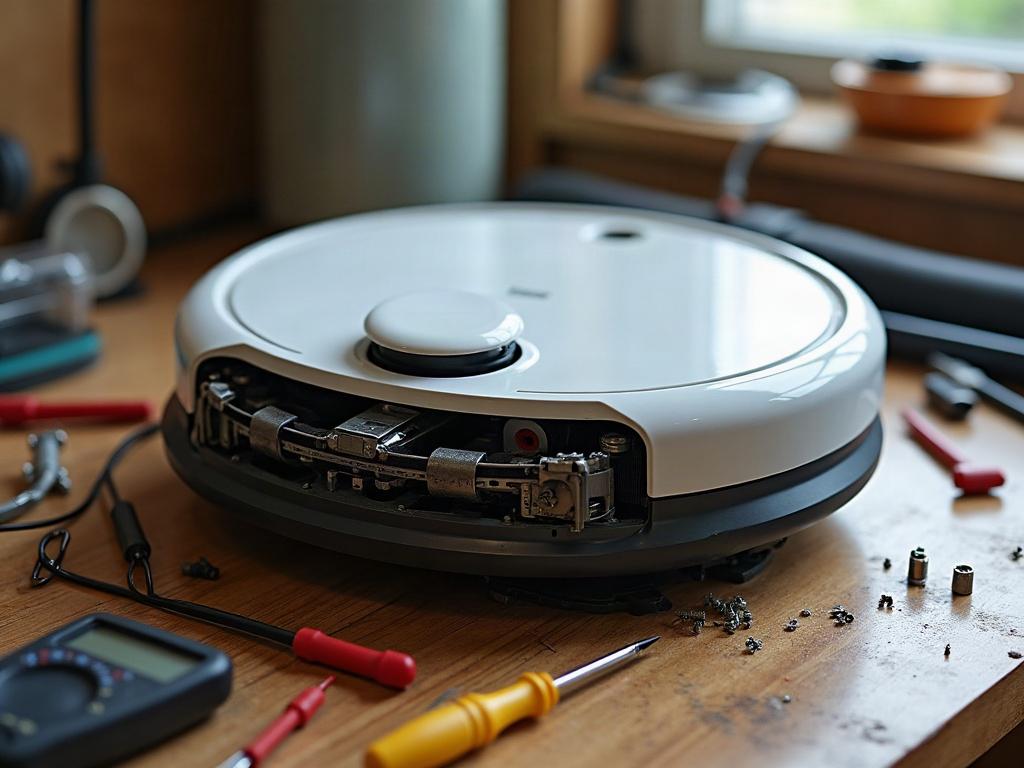
Diagnosing and Resetting the Cliff Sensors
The cliff sensors on your Roborock are responsible for detecting drop-offs and stairs, preventing the vacuum from falling. If these sensors are dirty or malfunctioning, the robot may display an error code and refuse to operate. To diagnose and reset the cliff sensors:
- Power off the Roborock and flip it over to access the bottom panel.
- Using a Phillips #1 screwdriver, remove the screws securing the bottom plate and carefully lift it off.
- Locate the cliff sensor modules near the edge of the robot’s base. These are small, rectangular components with optical lenses.
- Use a spudger or soft-bristled brush to gently clean the sensor lenses, removing any dust or debris.
- Reassemble the Roborock, making sure all screws are tightened securely.
- Power on the robot and check if the error code has been cleared. If the issue persists, the sensor module may need to be replaced.
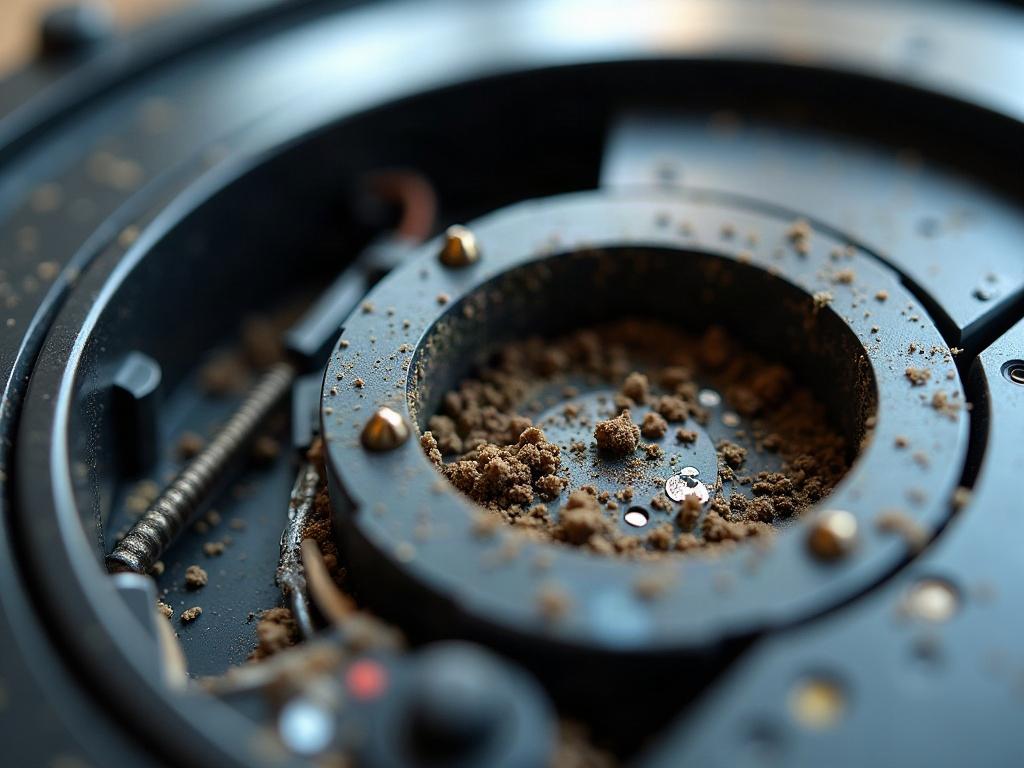
Replacing the Cliff Sensor Module
If cleaning the cliff sensors does not resolve the error code, you may need to replace the sensor module. This is a relatively straightforward process:
- Power off the Roborock and remove the bottom panel as before.
- Locate the faulty cliff sensor module and disconnect the cable connecting it to the main board.
- Gently pry the module out of its mounting and remove it.
- Install the new replacement module, making sure it is securely seated and the cable is properly reconnected.
- Reassemble the Roborock, power it on, and verify the error code has been cleared.
Preventing Future Cliff Sensor Issues
To avoid recurring cliff sensor problems, it’s important to regularly maintain your Roborock vacuum. Here are some tips:
- Clean the cliff sensor lenses every few weeks using a soft, dry cloth or brush.
- Avoid using the Roborock on highly reflective surfaces, as this can confuse the cliff sensors.
- Ensure the robot is not getting stuck or wedged in tight spaces, as this can damage the sensors.
- Keep the Roborock’s charging dock in an open, well-lit area to aid with navigation and docking.
Frequently Asked Questions
How do I reset my Roborock vacuum?
To reset your Roborock vacuum, power it off, then press and hold the power button for 10-15 seconds until the robot beeps and the status light flashes. This will reset the device to its factory settings.
Why is my Roborock vacuum not picking up dirt?
If your Roborock is not picking up dirt effectively, the issue may be a clogged filter, full dustbin, or worn-out brush roll. Check these components and clean or replace them as needed.
How do I clean the sensors on my Roborock vacuum?
To clean the sensors on your Roborock, power off the device and use a soft, dry cloth or brush to gently wipe away any dust or debris from the cliff sensors, bumper sensors, and other optical components.
How do I replace the battery in my Roborock vacuum?
Replacing the battery in a Roborock vacuum requires disassembling the robot. Power off the device, remove the bottom panel, disconnect the old battery, and install a new OEM replacement battery. Be sure to properly dispose of the old battery.
What should I do if my Roborock vacuum is stuck?
If your Roborock vacuum becomes stuck, first try to gently free it by hand. If that doesn’t work, power off the device, remove any obstructions, and then power it back on. You may also need to reset the robot’s navigation by pressing the reset button.
How do I update the firmware on my Roborock vacuum?
To update the firmware on your Roborock vacuum, download the latest firmware file from the Roborock website and follow the instructions provided by the manufacturer. This may involve connecting the robot to a computer or using the Roborock app.
What should I do if my Roborock vacuum is not charging?
If your Roborock vacuum is not charging, first check the charging dock and cable for any damage or obstructions. Make sure the dock is properly plugged in and the robot is making good contact with the charging pins. If the issue persists, you may need to replace the battery or charging components.