
If your robot vacuum won’t turn on, the most likely culprit is a power issue. This could be due to a dead battery, a problem with the charging dock, or an internal electrical fault. The good news is that many of these problems can be easily diagnosed and fixed at home with a few simple steps.
⚙️ SmartVacFix™ Diagnostic Triage
Primary Symptom: Robot vacuum completely unresponsive, no power, no lights, no sounds when the power button is pressed.
Tools & Parts Required: Phillips #1 screwdriver, replacement robot vacuum battery (if needed)
Repair vs. Replace: Many power issues can be resolved by cleaning contacts, resetting the device, or replacing the battery. A complete replacement is only needed if the motherboard or other internal components are faulty.
Safety Warning: Always power off the robot vacuum and remove it from the charging dock before performing any repairs or maintenance.
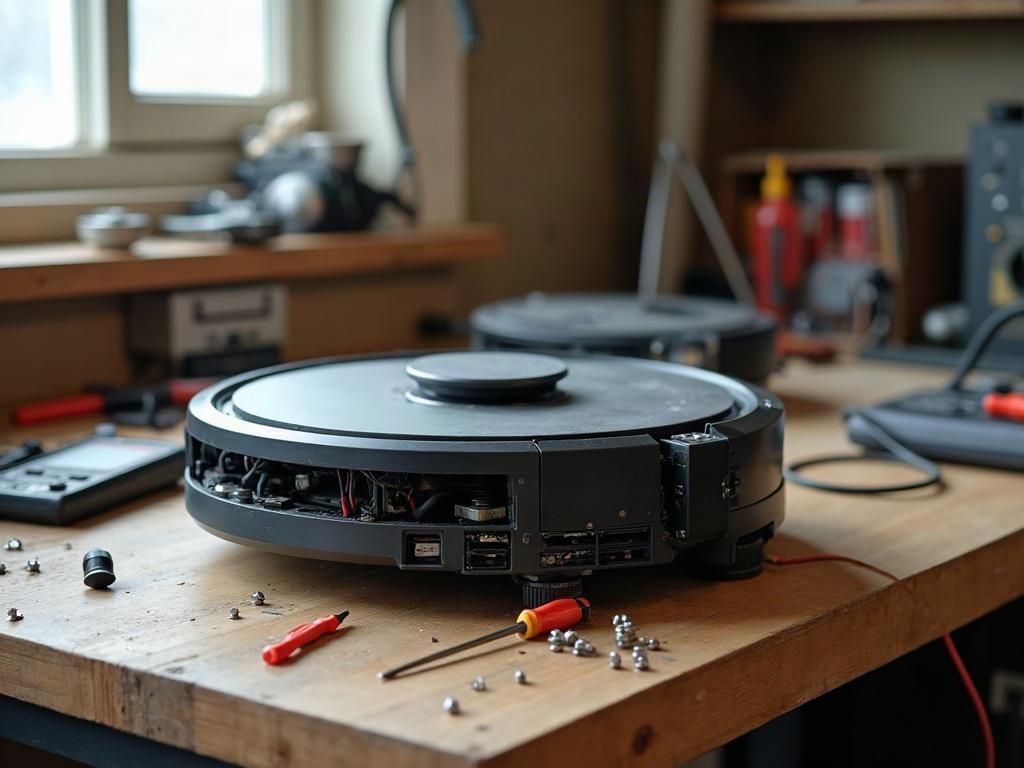
Why Won’t My Robot Vacuum Turn On?
The most common reasons a robot vacuum won’t turn on are:
- Dead battery – The battery may need to be recharged or replaced if it’s no longer holding a charge.
- Charging dock issues – Problems with the dock’s power supply or charging contacts can prevent the robot from charging and turning on.
- Internal electrical fault – A problem with the motherboard, wiring, or other internal components can cause the vacuum to be unresponsive.
How to Troubleshoot a Robot Vacuum That Won’t Turn On
To diagnose the issue, start by checking the basics:
- Ensure the robot vacuum is properly docked and charging. Check that the charging contacts on both the robot and dock are clean and making good contact.
- Try a hard reset by pressing and holding the power button for 20-30 seconds. This will reset the device’s internal systems.
- Inspect the battery compartment. Look for any corrosion on the battery terminals or damage to the battery wrapper.
Replacing the Robot Vacuum Battery
If the battery is the issue, you may be able to replace it yourself:
- Power off the robot and remove it from the charging dock.
- Locate the battery compartment, usually on the underside of the unit. Use a Phillips #1 screwdriver to remove the cover.
- Disconnect the old battery and replace it with a new OEM battery. Be careful not to damage any wires or connectors.
- Reassemble the robot vacuum and return it to the charging dock to test.
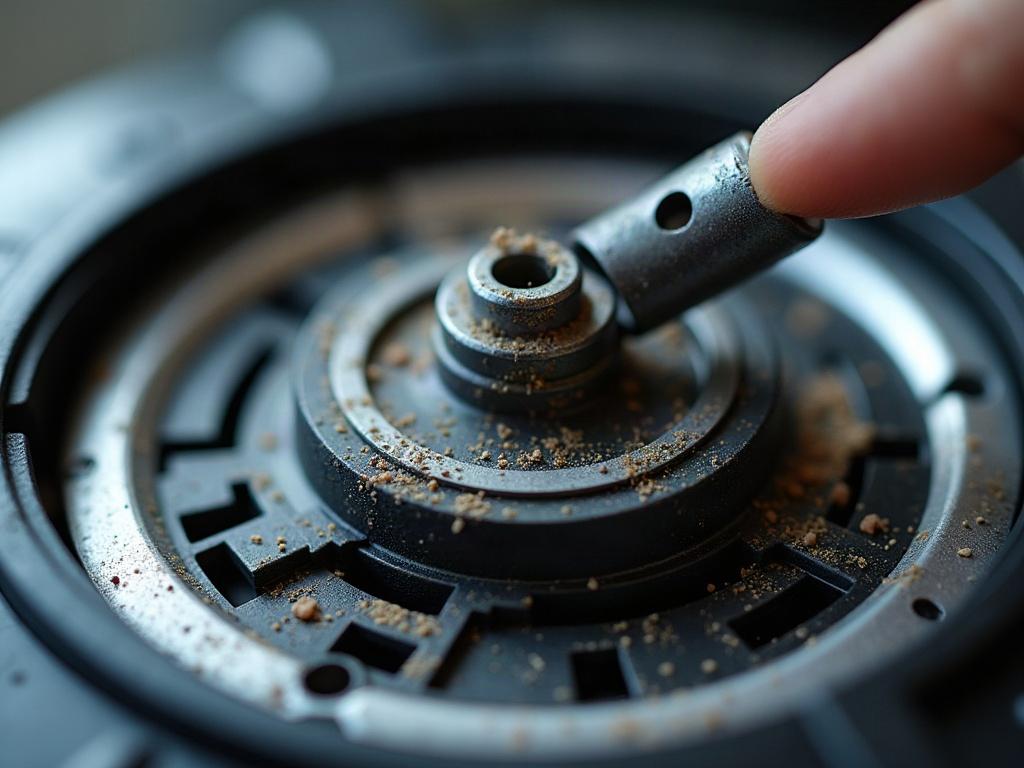
Differences by Brand and Model
The specific repair process can vary slightly depending on your robot vacuum’s brand and model:
| Brand | Battery Replacement | Sensor Layout |
|---|---|---|
| Roomba | Battery is user-replaceable | Uses camera-based navigation |
| Roborock | Battery is not user-replaceable | Uses LiDAR turret for navigation |
| Shark | Battery is user-replaceable | Uses a combination of cliff sensors and camera |
Preventing Future Robot Vacuum Issues
To keep your robot vacuum running smoothly, be sure to:
- Clean the charging contacts on both the robot and dock regularly
- Replace the battery every 12-18 months, even if it still seems to be working
- Regularly clean the robot’s sensors, wheels, and brushes to maintain performance
- Store the robot in a cool, dry place when not in use to preserve the battery
Frequently Asked Questions
How do I reset my robot vacuum?
To reset your robot vacuum, press and hold the power button for 20-30 seconds until the device powers off. This will clear any error codes or software glitches that may be preventing it from turning on.
What should I do if my robot vacuum won’t charge?
If your robot vacuum won’t charge, first check the charging contacts on both the robot and dock to make sure they’re clean and making good contact. You can also try a hard reset. If the issue persists, the charging dock or the robot’s power supply may need to be replaced.
How do I know if my robot vacuum battery is bad?
Signs of a bad robot vacuum battery include the device not holding a charge, running for shorter and shorter periods, or not powering on at all. If the battery is more than 12-18 months old, it’s a good idea to replace it proactively.
Can I replace the battery in my robot vacuum myself?
Yes, many robot vacuum models have user-replaceable batteries. Refer to your owner’s manual or the manufacturer’s website for specific instructions on how to access and replace the battery in your model.
How do I troubleshoot my robot vacuum error codes?
Refer to your robot vacuum’s user manual or the manufacturer’s website for a list of error codes and their meanings. This will help you diagnose the specific issue causing the error and determine the appropriate troubleshooting steps.
Why is my robot vacuum not responding?
If your robot vacuum is completely unresponsive, with no lights, sounds, or reaction when you press the power button, the issue is likely related to the power supply or an internal electrical fault. Try the troubleshooting steps outlined in this guide to diagnose and resolve the problem.
How can I extend the battery life of my robot vacuum?
To extend the battery life of your robot vacuum, be sure to store it in a cool, dry place when not in use, clean the charging contacts regularly, and replace the battery every 12-18 months, even if it still seems to be working.