
As the Senior Robotics Technician and DIY Appliance Repair Specialist for SmartVacFix.com, I’m here to guide you through diagnosing and repairing your malfunctioning robot vacuum. Whether you’re dealing with a Roomba, Roborock, Shark, or Eufy, I’ll provide the clear, safe, and highly technical steps to get your smart-home helper back in top shape.
⚙️ SmartVacFix™ Diagnostic Triage
Primary Symptom: The robot vacuum is not responding to the remote or app, and the status light is blinking an error code.
Tools & Parts Required: Phillips #1 screwdriver, soft cloth, and a replacement side brush (if needed).
Repair vs. Replace: This issue can likely be resolved with a simple cleaning and side brush replacement, avoiding the need for a more costly repair or replacement.
Safety Warning: Be sure to power off the robot vacuum and remove it from the charging dock before flipping it over or handling the internal components.
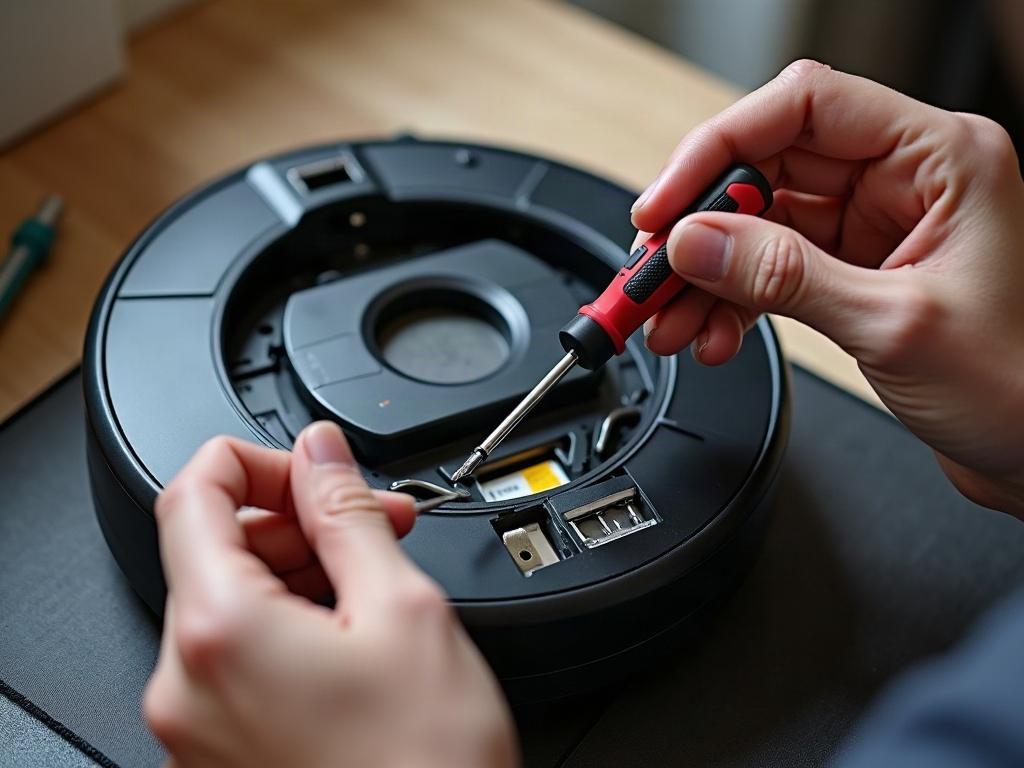
Troubleshooting a Blinking Error Code
If your robot vacuum is displaying a blinking error code, it’s likely indicating a specific issue that needs attention. Start by consulting your owner’s manual or the manufacturer’s website to decode the meaning of the error code. This will help you identify the root cause, whether it’s a stuck wheel, clogged sensors, or a problem with the side brush.
Cleaning the Sensors and Wheels
One of the most common causes of robot vacuum errors is a buildup of dirt and debris on the various sensors and wheels. Begin by carefully flipping the vacuum over and using a soft cloth to gently wipe down the cliff sensors, wheel encoders, and any other exposed sensors. Avoid using water or cleaning solutions, as these can damage the sensitive electronics.
Next, inspect the wheels for any tangled hair, string, or other debris that may be impeding their movement. Carefully remove any obstructions using your fingers or a pair of tweezers, taking care not to pull too hard and damage the wheel assemblies.
Replacing the Side Brush
If your robot vacuum’s side brush is worn, damaged, or not spinning properly, it can contribute to navigation and cleaning issues. Locate the side brush and gently pull it off the mounting post. Inspect the brush for any cracks, bends, or excessive wear, and replace it if necessary with a genuine OEM part.
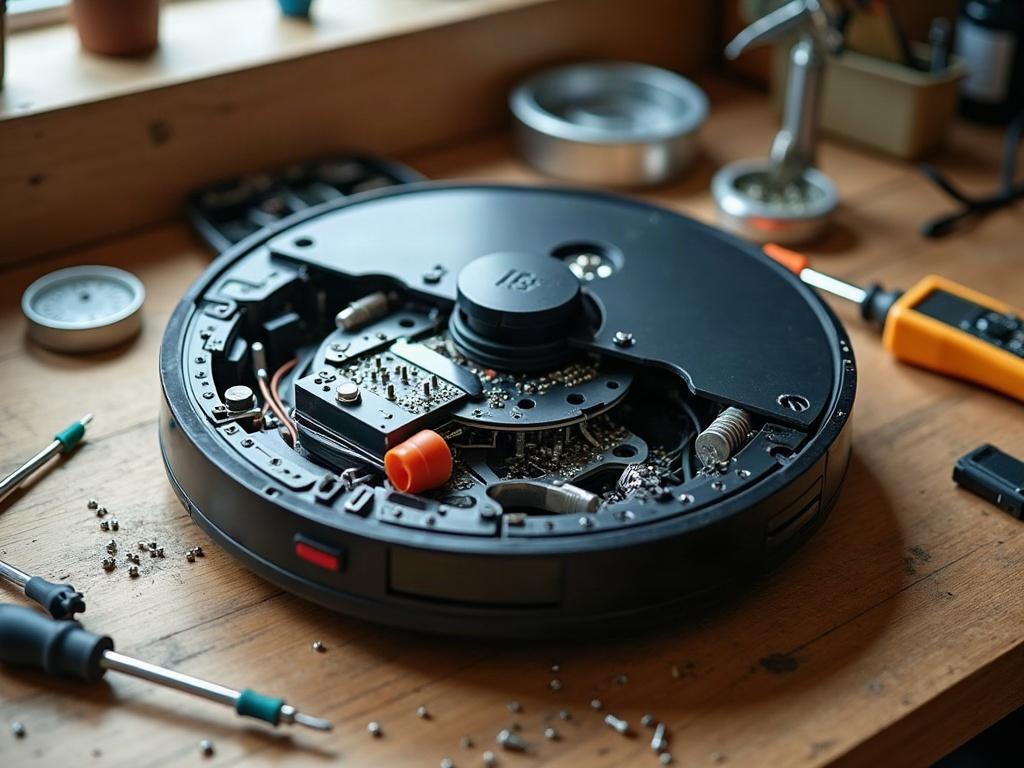
Resetting and Reconnecting the Robot
If the sensor cleaning and side brush replacement don’t resolve the error code, you may need to perform a full reset of the robot vacuum. Consult your owner’s manual for the specific reset procedure, which typically involves pressing and holding a combination of buttons for several seconds.
Once the reset is complete, try reconnecting the robot to your home’s Wi-Fi network and see if the error code persists. If the issue remains, you may need to contact the manufacturer for further troubleshooting or a potential warranty repair.
Preventive Maintenance Tips
To keep your robot vacuum running smoothly and avoid future errors, be sure to regularly clean the sensors, wheels, and side brush, as well as empty the dustbin after each use. Additionally, check the battery level and replace it if necessary, as a weak or depleted battery can also trigger error codes.
Frequently Asked Questions
What are the most common robot vacuum accessories?
The most common robot vacuum accessories include replacement filters, side brushes, battery packs, charging docks, and virtual boundary markers. These accessories help maintain optimal performance and extend the lifespan of your robot vacuum.
How do I replace the filter in my robot vacuum?
Replacing the filter in your robot vacuum is typically a simple process. Locate the filter compartment, usually on the underside of the unit, and gently remove the old filter. Insert a new OEM replacement filter, making sure it’s securely in place.
How often should I replace the battery in my robot vacuum?
The frequency of battery replacement can vary depending on the model and usage, but most robot vacuum manufacturers recommend replacing the battery every 12-18 months or when the runtime starts to noticeably decrease.
What accessories can improve the performance of my robot vacuum?
Accessories like high-efficiency filters, extra side brushes, and virtual boundary markers can all help improve the performance of your robot vacuum. These accessories can enhance the cleaning coverage, suction power, and navigation capabilities of your smart-home helper.
How do I clean the sensors on my robot vacuum?
Cleaning the sensors on your robot vacuum is an important maintenance task. Use a soft, dry cloth to gently wipe down the cliff sensors, wheel encoders, and any other exposed sensors. Avoid using liquids, as they can damage the sensitive electronic components.
Can I use third-party replacement parts for my robot vacuum?
While it’s generally safe to use third-party replacement parts like filters and side brushes, it’s always best to use genuine OEM parts recommended by the manufacturer. This ensures compatibility and maintains the warranty coverage on your robot vacuum.
How can I extend the battery life of my robot vacuum?
To extend the battery life of your robot vacuum, be sure to keep it docked on the charging station when not in use, avoid running it on high-power modes unnecessarily, and replace the battery every 12-18 months or when the runtime starts to decline.