
If your robot vacuum is not returning to its charging dock, the most likely culprit is a problem with the dock’s sensors or the vacuum’s navigation system. This is a common issue that can often be resolved with a few simple troubleshooting steps.
⚙️ SmartVacFix™ Diagnostic Triage
Primary Symptom: The robot vacuum is not able to locate or dock with its charging station.
Tools & Parts Required: Phillips #1 screwdriver, soft cloth, and potentially an OEM replacement part like a new docking station or navigation sensor.
Repair vs. Replace: Many docking issues can be resolved by cleaning the dock’s charging pins and sensors, but a faulty dock or navigation sensor may require replacement.
Safety Warning: Always power off the robot vacuum and remove it from the dock before attempting any repairs or maintenance.
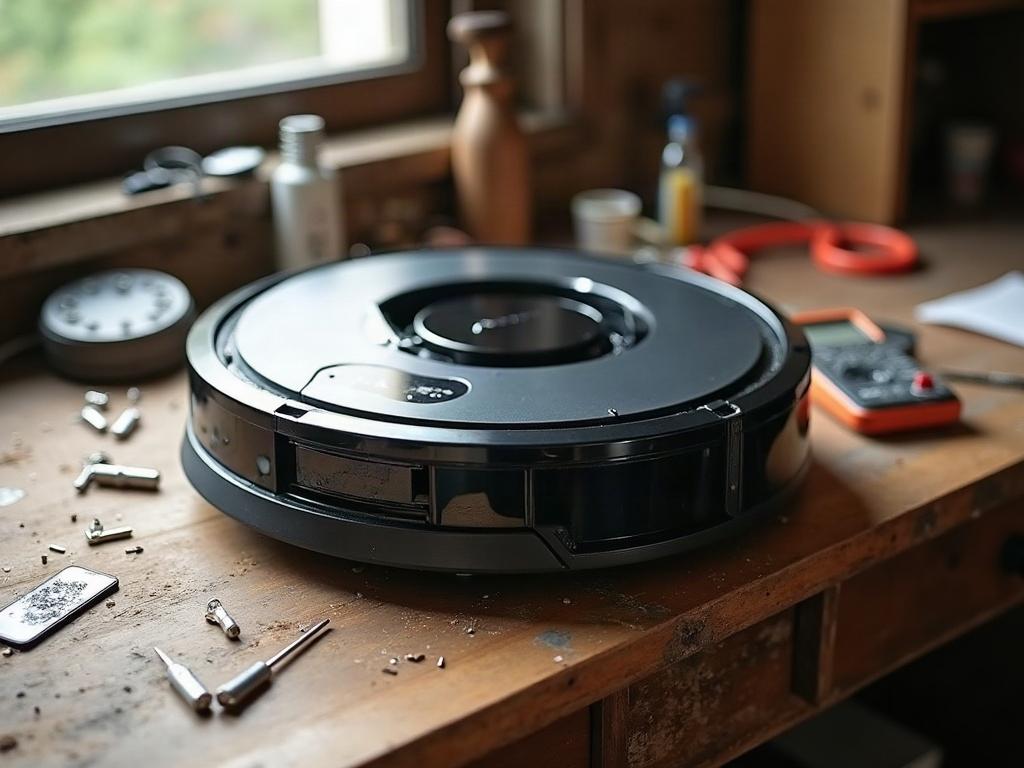
Why Isn’t My Robot Vacuum Returning to the Dock?
The most common reasons a robot vacuum won’t return to its dock include:
- Obstructed or dirty dock sensors – Dust, debris, or physical obstructions can prevent the vacuum from detecting the dock.
- Misaligned or damaged dock – If the dock is not positioned properly or has physical damage, the vacuum may not be able to locate and align with it.
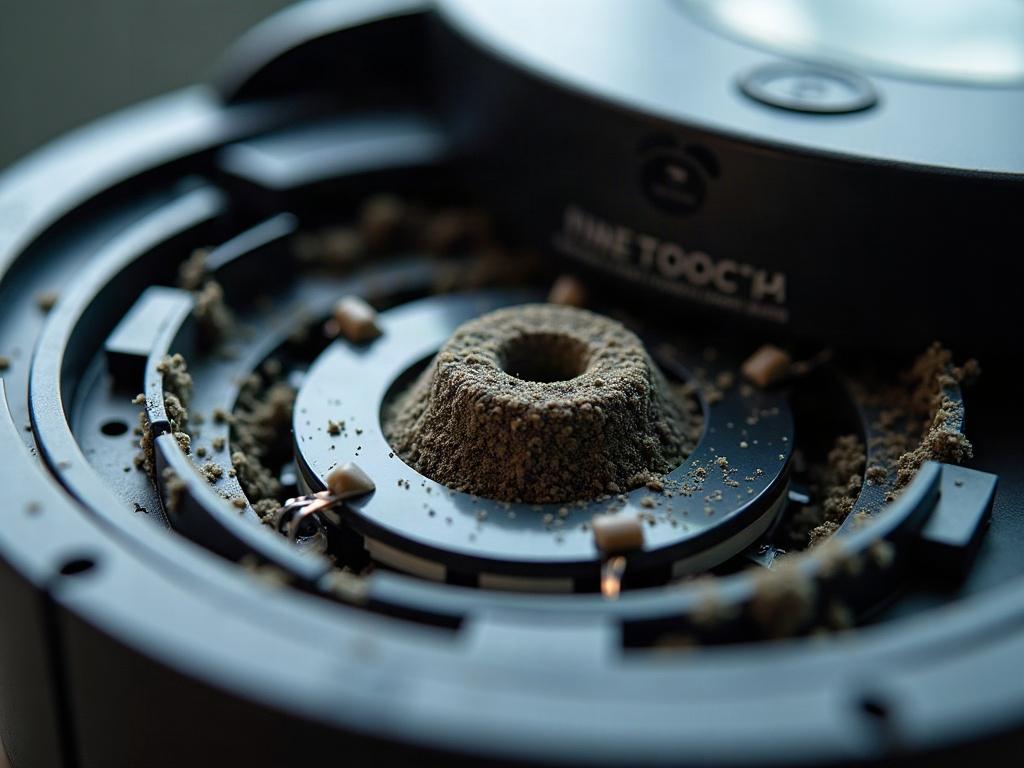
- Navigation system issues – Problems with the vacuum’s cliff sensors, LiDAR turret, or mapping software can cause it to lose its way back to the dock.
- Low battery – If the battery is critically low, the vacuum may not have enough power to make it back to the dock.
Troubleshooting Steps to Get Your Robot Vacuum Docking Again
Follow these steps to diagnose and resolve your robot vacuum’s docking issues:
- Inspect the dock – Check the dock for any obstructions or debris on the charging pins or sensors. Gently clean these areas with a soft cloth.
- Check the dock’s position – Ensure the dock is placed on a flat, level surface with at least 3 feet of clearance on all sides.
- Test the vacuum’s navigation – Place the vacuum a few feet from the dock and see if it can successfully navigate back and dock. If not, there may be an issue with the vacuum’s sensors or mapping.
- Recharge the battery – If the vacuum’s battery is low, let it fully charge before attempting to dock again.
- Reset the vacuum – Consult your owner’s manual for instructions on resetting the vacuum’s navigation and Wi-Fi connections.
- Replace the dock – If the dock itself is damaged or malfunctioning, you may need to order a replacement from the manufacturer.
Differences by Brand and Model
The specific troubleshooting steps may vary slightly depending on your robot vacuum’s brand and model:
| Brand | Navigation System | Dock Sensor Location |
|---|---|---|
| Roomba | Camera-based navigation | Charging pins and infrared sensors on the front of the dock |
| Roborock | LiDAR-based navigation | Charging pins and proximity sensors on the top of the dock |
| Shark | Combination of camera and cliff sensors | Charging pins and infrared sensors on the front of the dock |
Maintaining Your Robot Vacuum’s Docking Performance
To prevent future docking issues, regularly clean the charging dock’s pins and sensors, and keep the dock’s surrounding area clear of obstacles. Additionally, ensure the vacuum’s cliff sensors and navigation components are free of dust and debris. Performing these simple maintenance tasks will help keep your robot vacuum docking reliably.
Frequently Asked Questions
Why is my robot vacuum not finding the dock?
If your robot vacuum is having trouble locating its dock, the most likely causes are obstructed or dirty dock sensors, a misaligned or damaged dock, or issues with the vacuum’s navigation system, such as faulty cliff sensors or mapping software.
How do I reset my robot vacuum to the dock?
To reset your robot vacuum’s connection to the dock, consult your owner’s manual for the specific reset procedure. This typically involves pressing a combination of buttons or using a reset pinhole on the vacuum or dock.
What should I do if my robot vacuum won’t charge?
If your robot vacuum is not charging, first check the dock’s charging pins and the vacuum’s charging contacts for any debris or damage. Clean the contacts and ensure the dock is properly powered. If the issue persists, the battery or charging circuit may need to be replaced.
How do I troubleshoot a robot vacuum docking issue?
To troubleshoot docking issues, start by inspecting the dock for obstructions or damage, checking the vacuum’s navigation sensors, and ensuring the dock is properly positioned. If the vacuum still can’t find the dock, try resetting the device or replacing the dock if it’s faulty.
Why is my robot vacuum stuck and not docking?
If your robot vacuum is getting stuck and unable to dock, the most common causes are physical obstructions around the dock, misalignment of the dock, or problems with the vacuum’s cliff sensors or mapping software. Clearing the area around the dock and troubleshooting the vacuum’s navigation system are the first steps to resolving this issue.
How do I get my robot vacuum to go back to its base?
To get your robot vacuum to successfully return to its base, ensure the dock is properly positioned, clean the dock’s sensors, and check the vacuum’s navigation components for any issues. You may also need to reset the vacuum’s connection to the dock or replace a faulty dock.
What can cause a robot vacuum to not dock?
The main causes of a robot vacuum not docking properly are obstructed or dirty dock sensors, a misaligned or damaged dock, low battery, and problems with the vacuum’s navigation system, such as faulty cliff sensors or mapping software.