
If your robot vacuum is not responding, won’t power on, or is exhibiting strange behavior, it’s likely time to reset it. Resetting your robot vacuum can help resolve many common issues and get it back to working order. The exact reset process will vary depending on your vacuum’s brand and model, but I’ll guide you through the general steps to reset most popular robot vacuums safely.
⚙️ SmartVacFix™ Diagnostic Triage
Primary Symptom: Robot vacuum is unresponsive, stuck in a loop, or displaying an error code
Tools & Parts Required: Phillips #1 screwdriver, clean microfiber cloth
Repair vs. Replace: Resetting the robot vacuum should resolve most common issues for free
Safety Warning: Power off the robot vacuum and remove it from the charging dock before attempting any repairs
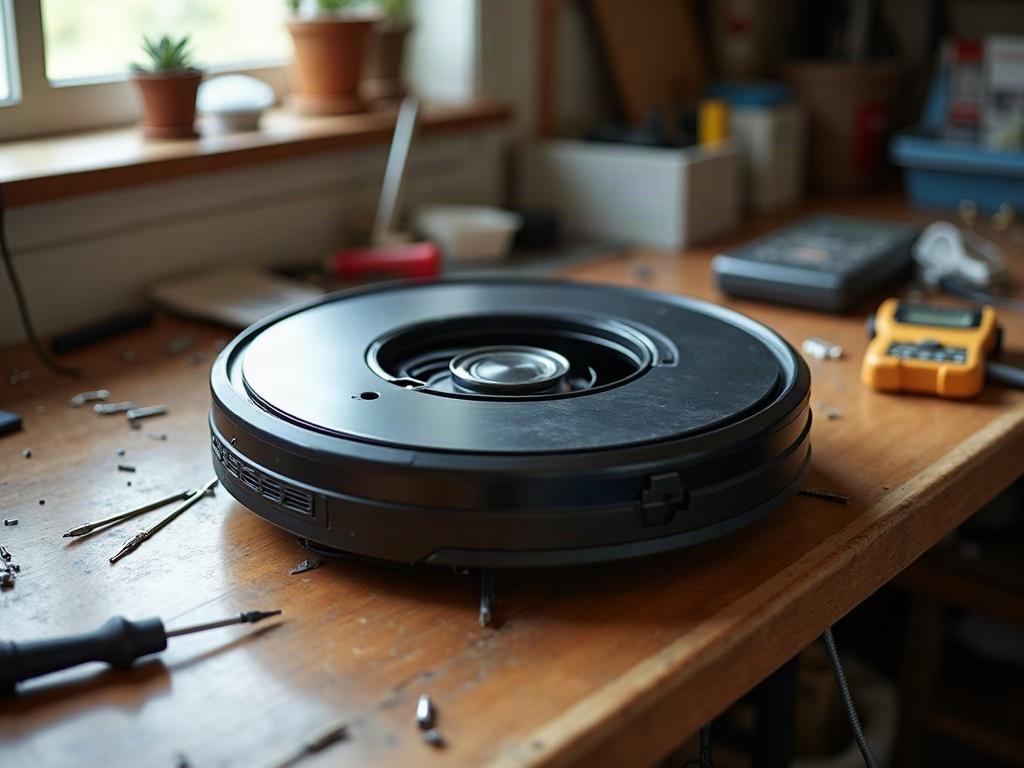
How to Reset a Robot Vacuum
The basic reset process for most robot vacuums involves the following steps:
- Power off the robot vacuum by pressing and holding the power button for 5-10 seconds until the unit shuts down completely.
- Locate the reset button, usually on the underside of the vacuum near the battery compartment. This may be recessed or require a Phillips #1 screwdriver to access.
- Press and hold the reset button for 10-15 seconds until the vacuum beeps or the lights flash, indicating it has been reset.
- Power the vacuum back on and allow it to complete its startup sequence. This may take a minute or two.
- If the reset was successful, the vacuum should now be restored to its factory default settings.
Resetting Different Robot Vacuum Brands
While the general reset process is similar across brands, the specific steps may vary slightly:
| Brand | Reset Process |
|---|---|
| Roomba | Press and hold the Clean button for 10-15 seconds until the vacuum beeps and the lights flash. |
| Roborock | Press and hold the Reset button on the underside of the vacuum for 10-15 seconds until it beeps. |
| Shark | Press and hold the Home and Spot Clean buttons simultaneously for 10-15 seconds until the vacuum beeps. |
| Ecovacs | Press and hold the Auto and Spot buttons simultaneously for 10-15 seconds until the vacuum beeps. |
What to Do After Resetting Your Robot Vacuum
After resetting your robot vacuum, you may need to reconnect it to your home Wi-Fi network and re-map your home if it uses smart navigation features. Consult your vacuum’s user manual or manufacturer’s website for specific instructions on setting up your robot vacuum after a reset.
It’s also a good idea to clean the vacuum’s sensors, wheels, and other components to ensure it can navigate and function properly. Use a clean microfiber cloth to gently wipe down the vacuum’s exterior and interior surfaces.
Preventing Future Resets
To avoid the need for frequent resets, be sure to keep your robot vacuum well-maintained. Regularly clean the brushes, sensors, and other components, and replace the battery when it starts to lose its charge. Avoid letting the vacuum get stuck or run over large debris that could damage its internal components.
Frequently Asked Questions
Why does my robot vacuum need to be reset?
Robot vacuums may need to be reset for a variety of reasons, such as software glitches, sensor issues, or getting stuck in a loop. Resetting the vacuum can help clear any temporary errors or restore it to its default settings.
How do I know if my robot vacuum needs to be reset?
Signs that your robot vacuum needs to be reset include unresponsiveness, erratic behavior, getting stuck in a loop, or displaying an error code. If the vacuum is not functioning as expected, a reset is often the first troubleshooting step to try.
Will resetting my robot vacuum erase my cleaning schedule or map?
Resetting your robot vacuum will typically restore it to its factory default settings, which may erase any custom cleaning schedules, room maps, or other personalized settings. Be prepared to reconfigure these after the reset.
Can I reset my robot vacuum while it’s charging?
It’s best to power off the robot vacuum and remove it from the charging dock before attempting a reset. This ensures the reset process is completed correctly and avoids any potential issues with the charging connection.
What if my robot vacuum still doesn’t work after a reset?
If your robot vacuum is still not functioning properly after a reset, there may be a more serious hardware or software issue that requires further troubleshooting or potentially a replacement part or unit.
How often should I reset my robot vacuum?
You generally only need to reset your robot vacuum if it’s exhibiting problems or not functioning as expected. Routine resets are not necessary, and resetting too frequently can potentially cause more issues. Try other troubleshooting steps first before resorting to a reset.
Can I reset my robot vacuum to factory settings?
Yes, the reset process will typically restore your robot vacuum to its original factory default settings. This can be useful if you’re troubleshooting issues or preparing to sell or give away the vacuum.