
If your robot vacuum keeps stopping or malfunctioning, the most common causes are clogged sensors, tangled wheels, or a low battery. The good news is many of these issues can be resolved with a quick DIY cleaning and troubleshooting. Let’s walk through the step-by-step process to get your robot vacuum back on track.
⚙️ SmartVacFix™ Diagnostic Triage
Primary Symptom: Robot vacuum repeatedly stops, gets stuck, or won’t complete a full cleaning cycle.
Tools & Parts Required: Phillips #1 screwdriver, soft-bristle brush, compressed air, and potentially an OEM replacement part like a new wheel or sensor.
Repair vs. Replace: Many common issues can be resolved by cleaning and resetting the robot. If a part is physically damaged, you’ll need to order a replacement.
Safety Warning: Always power off the robot vacuum and remove it from the charging dock before flipping it over or accessing the internal components.
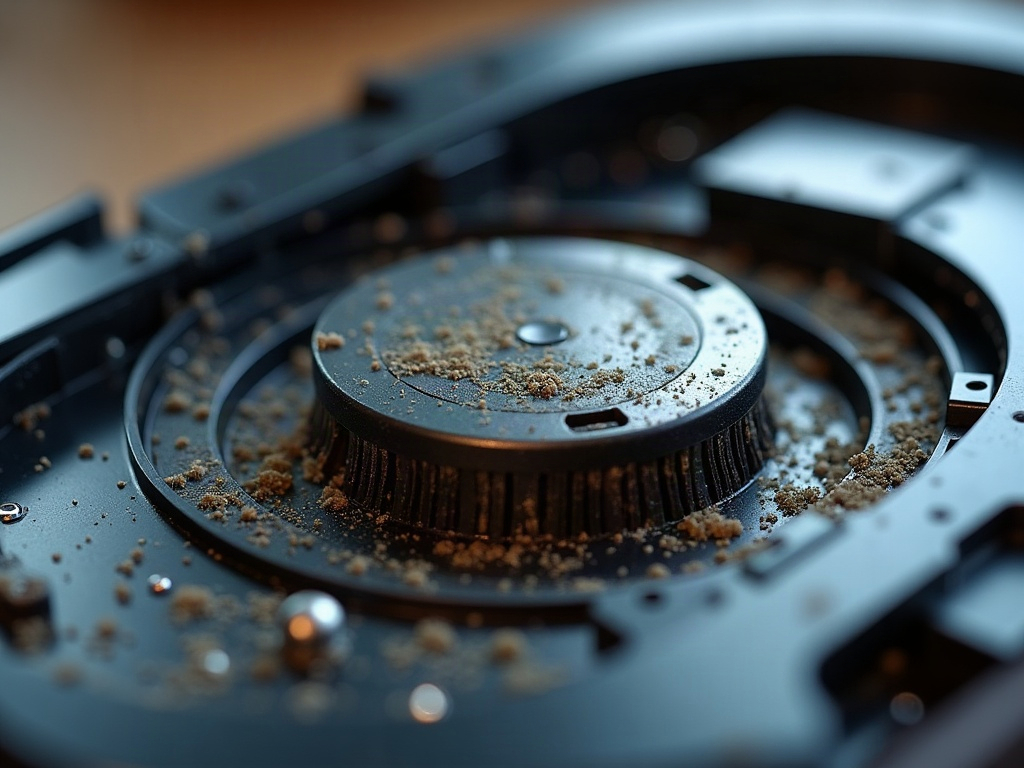
Why Does My Robot Vacuum Keep Stopping?
The most likely reasons your robot vacuum keeps stopping are:
- Clogged or dirty sensors – The cliff, wall, and object detection sensors can get blocked by dust and debris, causing the robot to stop moving.
- Tangled or stuck wheels – If the wheels are obstructed by hair, string, or other debris, the robot won’t be able to navigate properly.
- Low battery – If the battery is running low, the robot will stop cleaning and return to its dock to recharge.
How to Clean and Reset Your Robot Vacuum
To get your robot vacuum working again, start by thoroughly cleaning all the sensors, wheels, and brushes:
- Power off the robot and remove it from the charging dock.
- Use a soft-bristle brush to gently clean the cliff, wall, and object detection sensors on the bottom of the robot.
- Remove the side brushes and main brush roll, then use compressed air to blow out any hair or debris.
- Check the wheels and remove any tangled strings, hair, or other obstructions.
- Once everything is clean, power the robot back on and try running a new cleaning cycle.
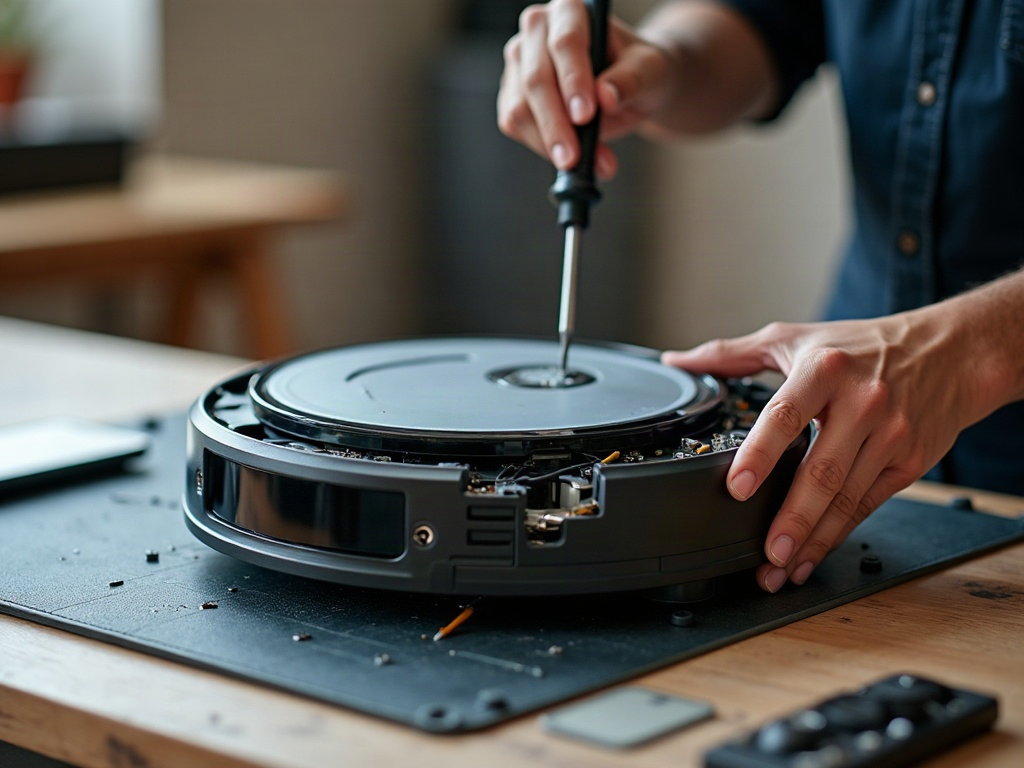
Resetting Your Robot Vacuum
If cleaning the sensors and components doesn’t resolve the issue, you may need to reset your robot vacuum:
- Locate the reset button, usually on the bottom or side of the robot.
- Press and hold the reset button for 10-15 seconds until the robot beeps or the lights flash.
- This will reset the robot’s onboard computer and clear any error codes or stuck processes.
- Once reset, try running a new cleaning cycle to see if the problem is resolved.
Replacing Damaged Robot Vacuum Parts
If your robot vacuum has a physically damaged component, you’ll need to replace the part:
- Identify the specific part that needs replacement, such as a wheel, sensor, or brush roll.
- Order the correct OEM (original equipment manufacturer) replacement part for your robot vacuum model.
- Follow the manufacturer’s instructions to safely remove and replace the damaged component.
- After installing the new part, power on the robot and test it to ensure the issue is resolved.
Frequently Asked Questions
Will replacing parts void my robot vacuum’s warranty?
Replacing basic maintenance parts like filters, brushes, and wheels typically won’t void the warranty, as long as you use OEM replacement parts. However, opening the robot’s chassis or modifying internal components may void the warranty, so check with the manufacturer first.
Can I use aftermarket parts instead of OEM parts?
While aftermarket parts can sometimes be cheaper, it’s generally best to use OEM parts recommended by the robot vacuum manufacturer. Aftermarket parts may not fit or function properly, and could potentially damage your robot.
How often should I clean and maintain my robot vacuum?
For optimal performance, most manufacturers recommend cleaning the sensors, wheels, and brushes at least once per month, or more frequently if you have pets or lots of debris in your home.