
If your robot vacuum is not charging, the most likely culprit is a problem with the charging contacts or the battery itself. The good news is that this is often a simple fix that you can do yourself with just a few tools. Let’s walk through the diagnostic steps to get your robot vacuum back up and running.
⚙️ SmartVacFix™ Diagnostic Triage
Primary Symptom: Robot vacuum not charging or not holding a charge
Tools & Parts Required: Phillips #1 screwdriver, soft cloth, and potentially an OEM replacement battery
Repair vs. Replace: In many cases, this can be cleaned and fixed for free. A replacement battery may be required if the original is worn out.
Safety Warning: Power off the robot vacuum and remove it from the charging dock before flipping it over or handling the battery.
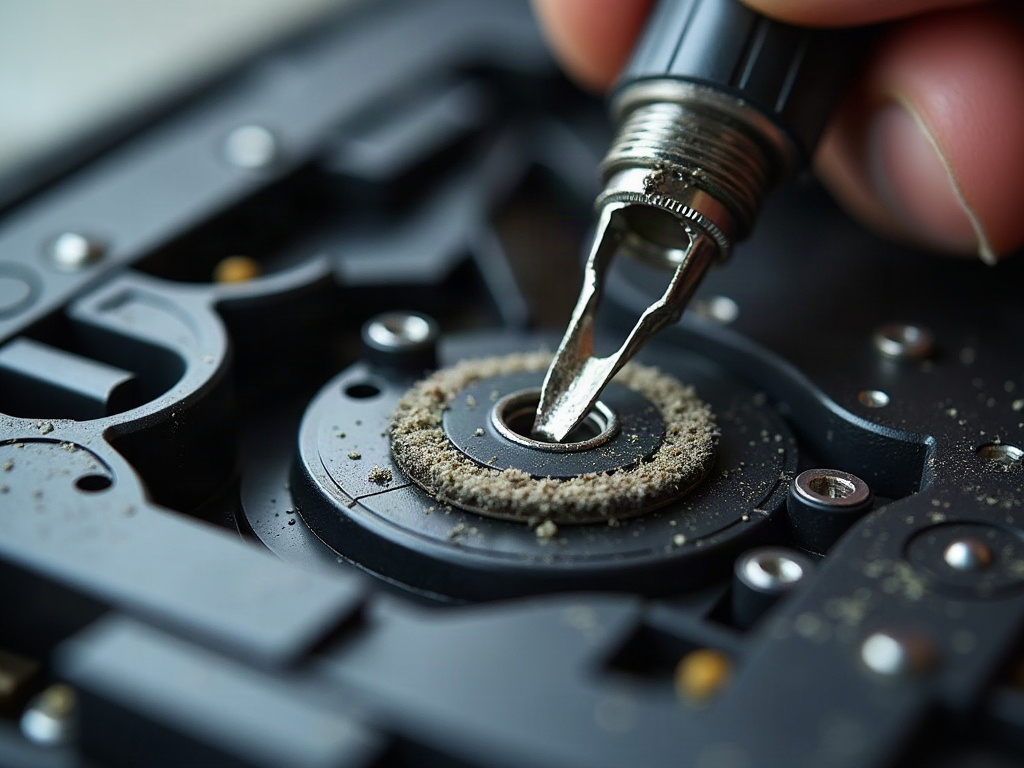
Why Isn’t My Robot Vacuum Charging?
The most common reasons a robot vacuum won’t charge are:
- Dirty charging contacts on the robot or dock
- A faulty battery that needs replacement
- An issue with the charging dock or power adapter
Let’s start by checking the charging contacts.
Cleaning the Charging Contacts
- Power off the robot vacuum and remove it from the charging dock.
- Gently wipe the metal charging contacts on both the robot and the dock using a soft, dry cloth. Avoid using any liquids.
- Check for any debris or corrosion buildup that could be preventing a proper connection.
- Once cleaned, try placing the robot back on the dock to see if it begins charging.
If the contacts look clean but the robot still won’t charge, the battery may need to be replaced.
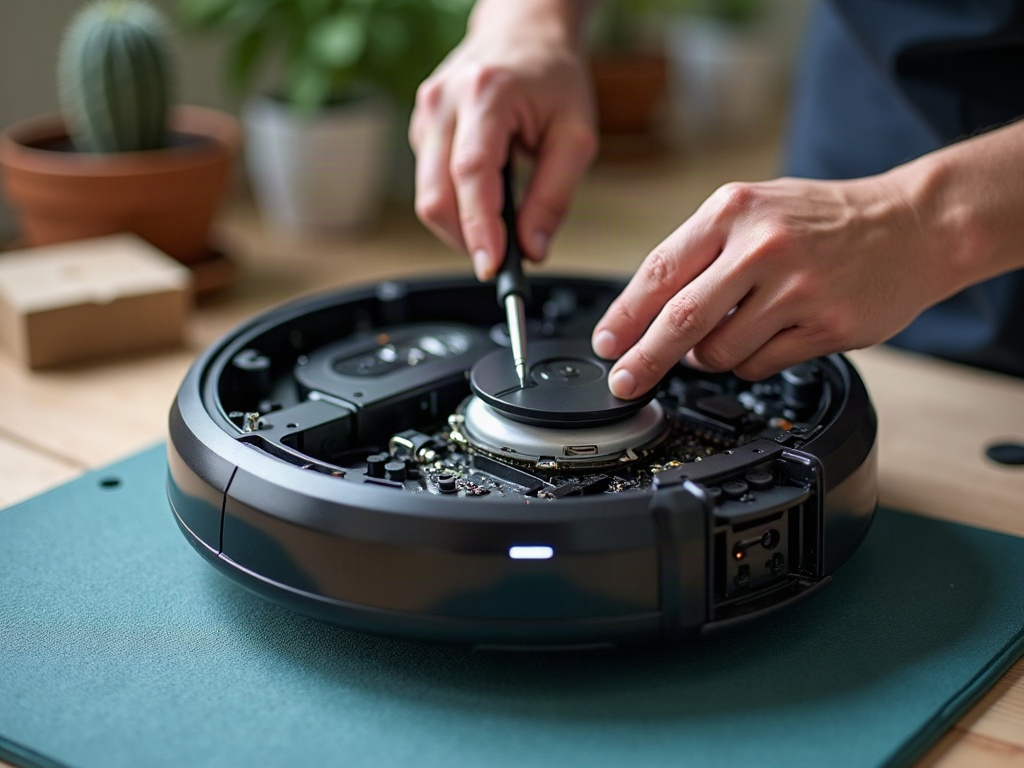
Replacing the Robot Vacuum Battery
- Power off the robot vacuum and remove it from the charging dock.
- Locate the battery compartment, usually on the underside of the robot. This may require removing some screws with a Phillips #1 screwdriver.
- Carefully disconnect the old battery and remove it from the compartment.
- Insert the new replacement battery, making sure the connections are secure.
- Replace the battery compartment cover and any screws.
- Place the robot back on the charging dock and monitor to ensure it begins charging properly.
If the robot still won’t charge after replacing the battery, the issue may be with the charging dock or power adapter.
Troubleshooting the Charging Dock
- Inspect the charging dock for any visible damage or debris.
- Check that the power adapter is securely plugged into both the dock and a working electrical outlet.
- Try a different power outlet to rule out an issue with the outlet itself.
- If the dock still doesn’t seem to be providing power, you may need to replace the entire charging dock assembly.
Frequently Asked Questions
Will replacing the battery void my warranty?
Replacing the battery yourself will not void the warranty on most robot vacuums, as long as you use a genuine OEM replacement part. Check your manufacturer’s warranty policy to be sure.
Can I use an aftermarket battery?
While aftermarket batteries may be cheaper, it’s generally best to use a replacement battery from the original manufacturer. This ensures proper fit and compatibility with your specific robot vacuum model.
How often should I replace the robot vacuum battery?
Most robot vacuum batteries will last 12-24 months with regular use before needing replacement. Signs it’s time for a new battery include shorter run times and the robot not holding a charge.